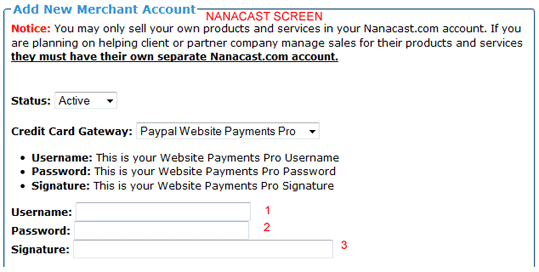
The following steps should be taken to ensure you've entered the correct credentials when setting up your merchant account for PayPAl WPP:
1. Login to your PayPal account and click Profile
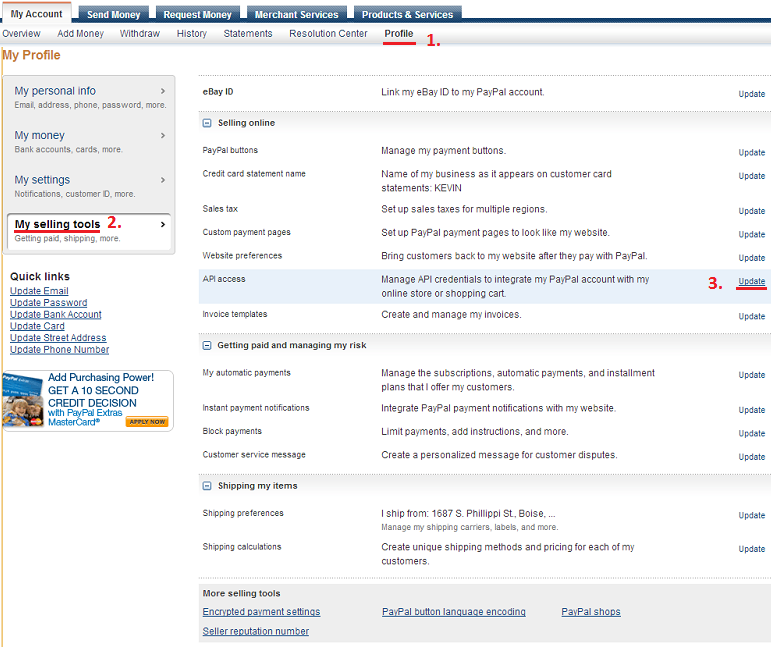
2. Click "My Selling Tools"
3. Under API Access, click "Update"
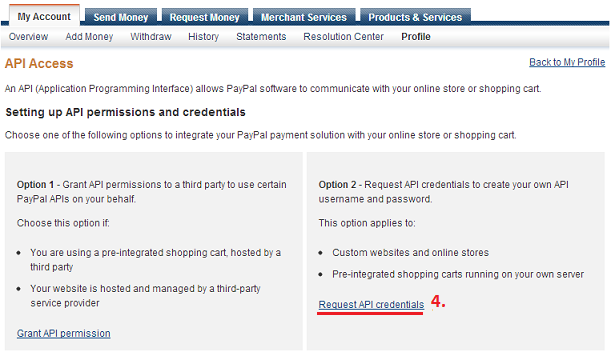
4. Click "Request API Credentials"
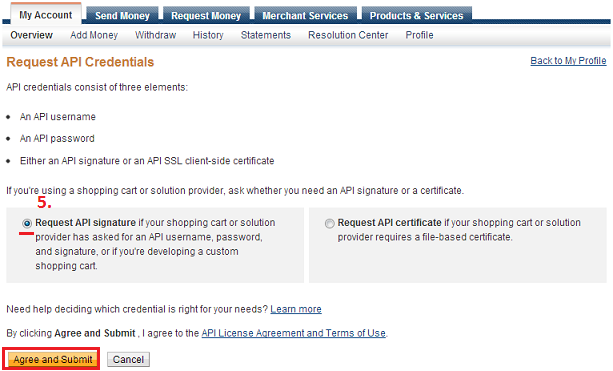
5. With "Request API Signature" selected, click Agree and Submit
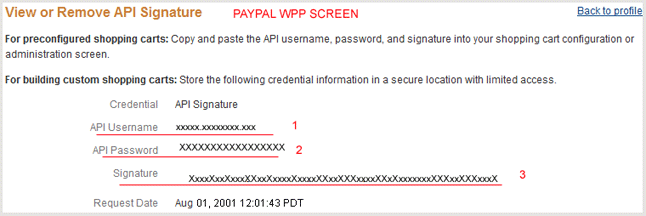
6. Copy the API Username, API Password, and Signature and paste it into the equivalent fields in the Nanacast Add Merchant Account screen. BE SURE there are no BLANK SPACES before or after each credential when you paste it into the Nanacast fields, or this could cause a "Security Header is not valid" error message when you attempt transactions.
Keywords: Merchant account, Paypal pro



